Assignments guide
Assignments guide
From the first task to final feedback: ten steps to organise, track and assess learning.
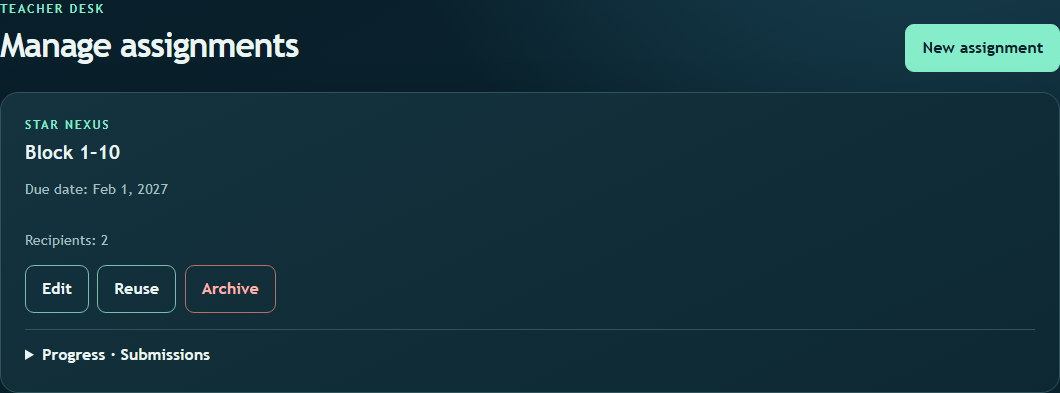
Create an assignment
In Assignments, select New assignment. Choose Citadel or Nexus, a ten-level block, start and due dates, attempts and whether late submissions are allowed. Check the recipient summary before saving.
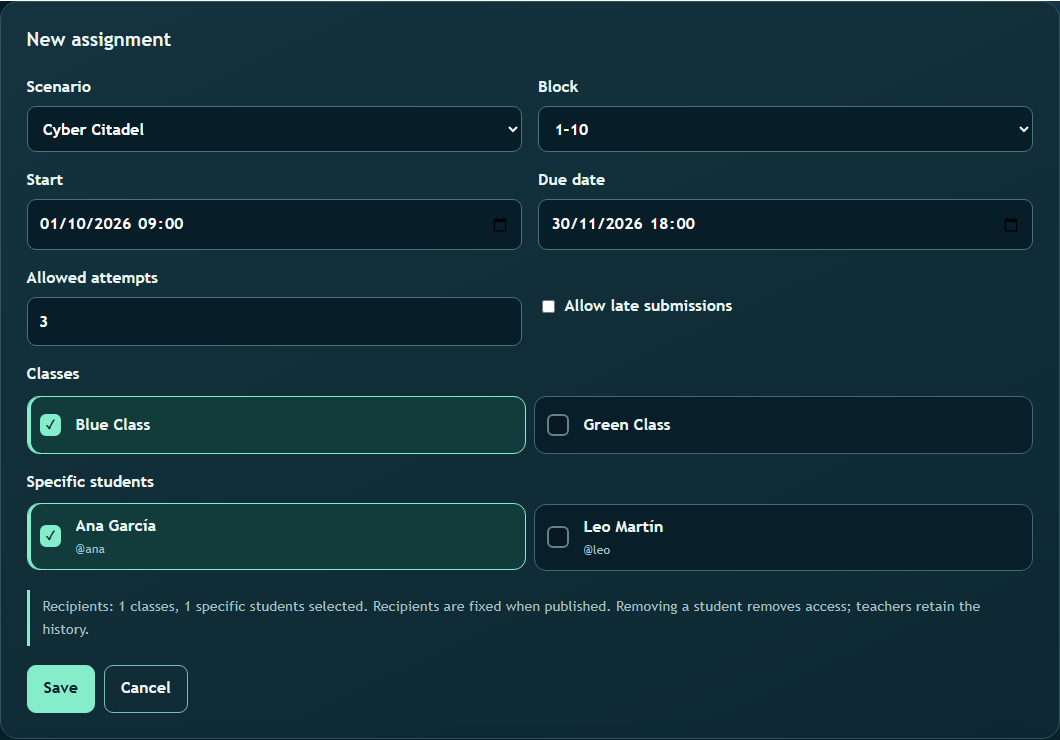
Choose recipients and understand access
Select one or more classes and specific students. Publishing freezes the recipient list: a later class change neither grants nor removes access. Removing a student stops new work while preserving earlier submissions for the teacher.

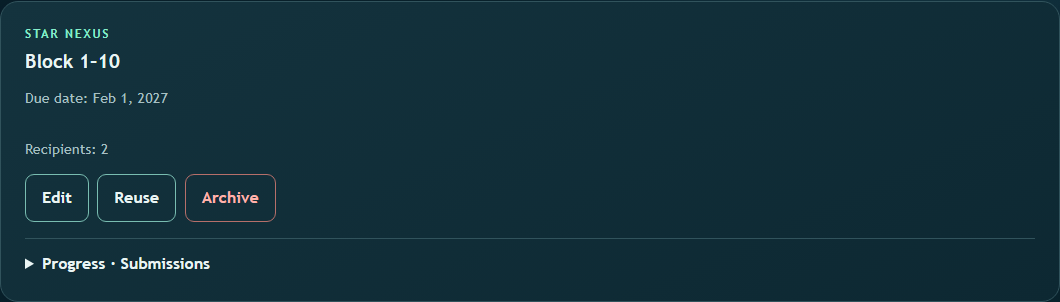
Edit, reuse or retire
Edit changes dates or recipients on the current task. Reuse creates a new task from its settings; retire closes the task and removes it from the student view. Check the summary before confirming changes.
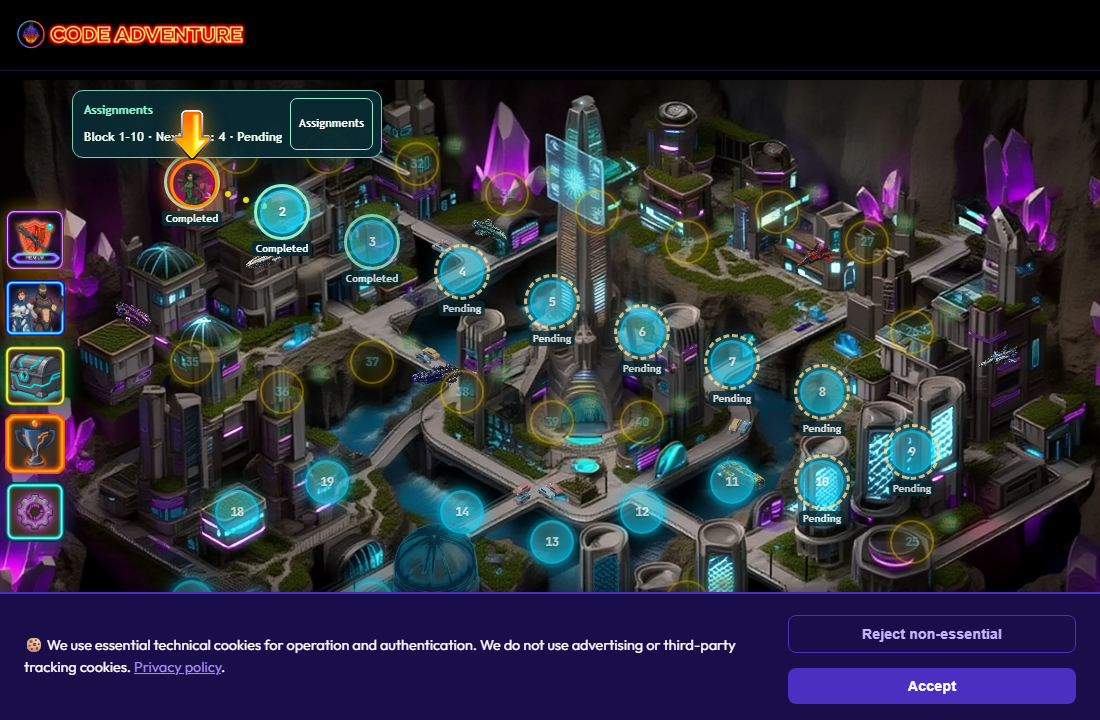
Read map statuses
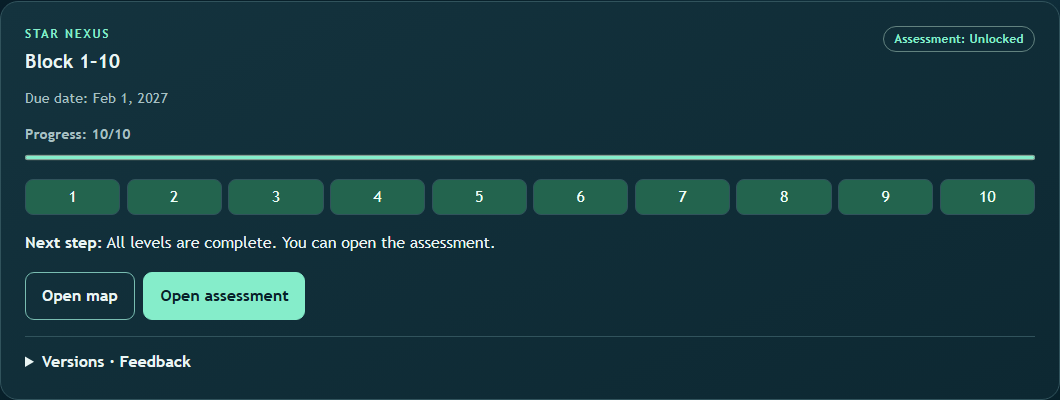
Maps mark the assigned block and distinguish pending from completed levels. They show the next level and whether the assessment is locked or unlocked. Entering a level directly shows the next step without interrupting play.

Check progress and sync
Open Progress and Submissions to see what each student still needs. Opening a level is not enough: its actual objectives count. Check last sync and inactive days before interpreting apparently stalled progress.
Prepare assessments and resolve drafts
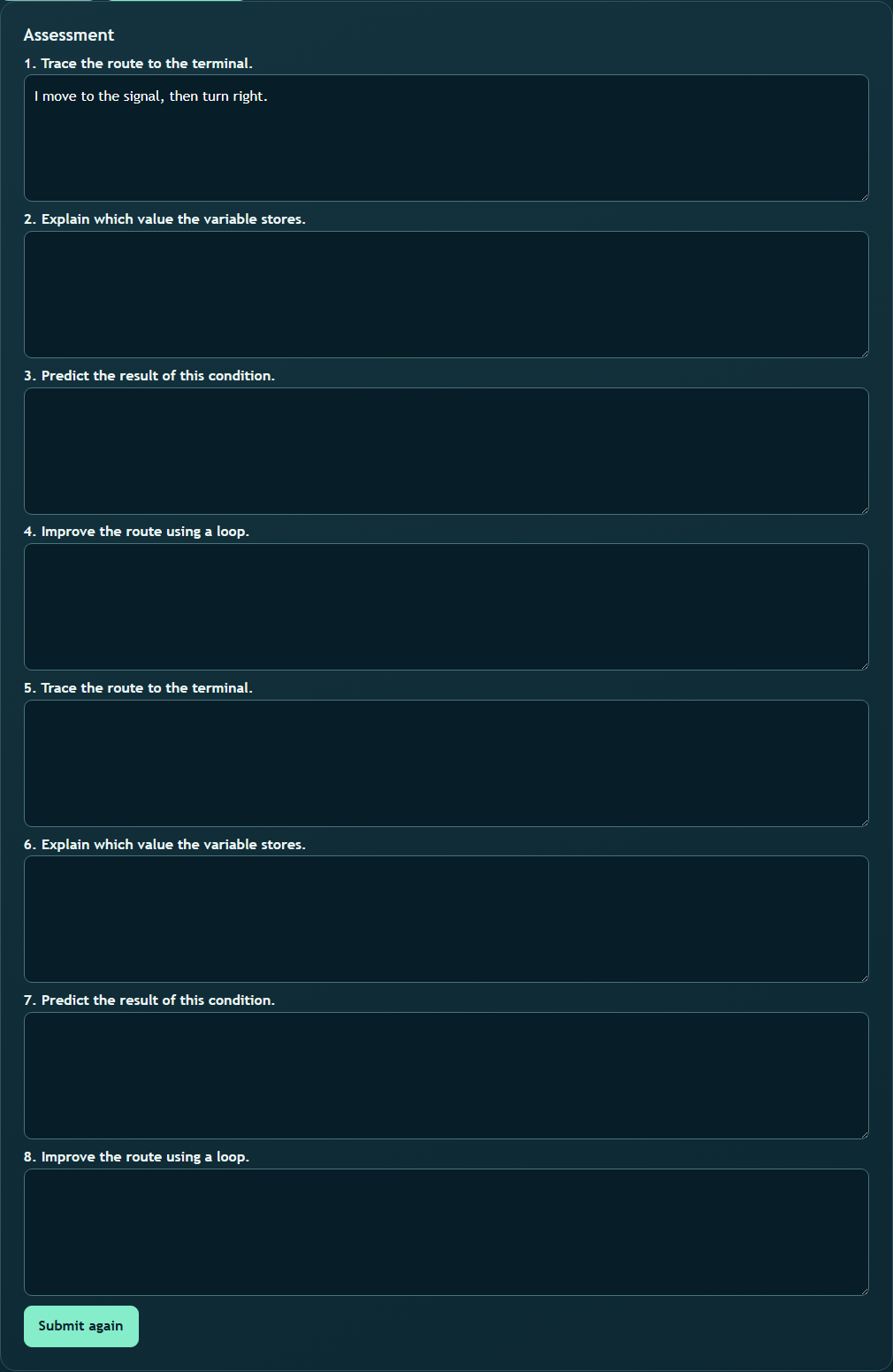
The assessment unlocks after all ten levels and their objectives are complete. Each block has code, prediction, explanation and practical exercises. Drafts save automatically; if another device changed one, the student chooses the local or server version.

Review and compare versions
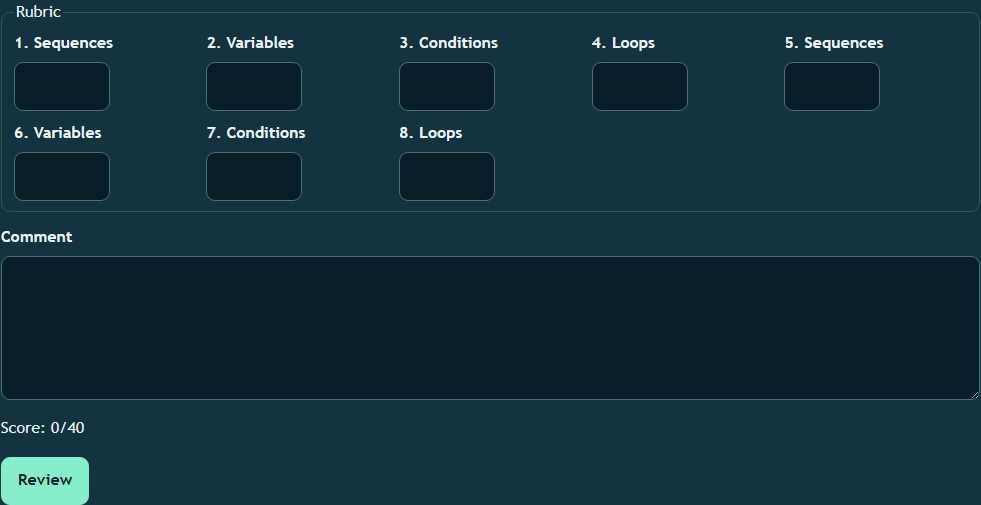
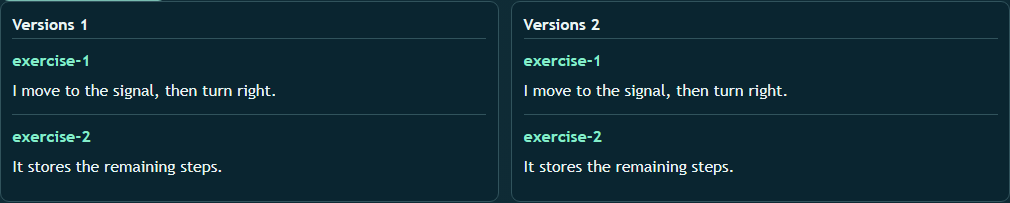
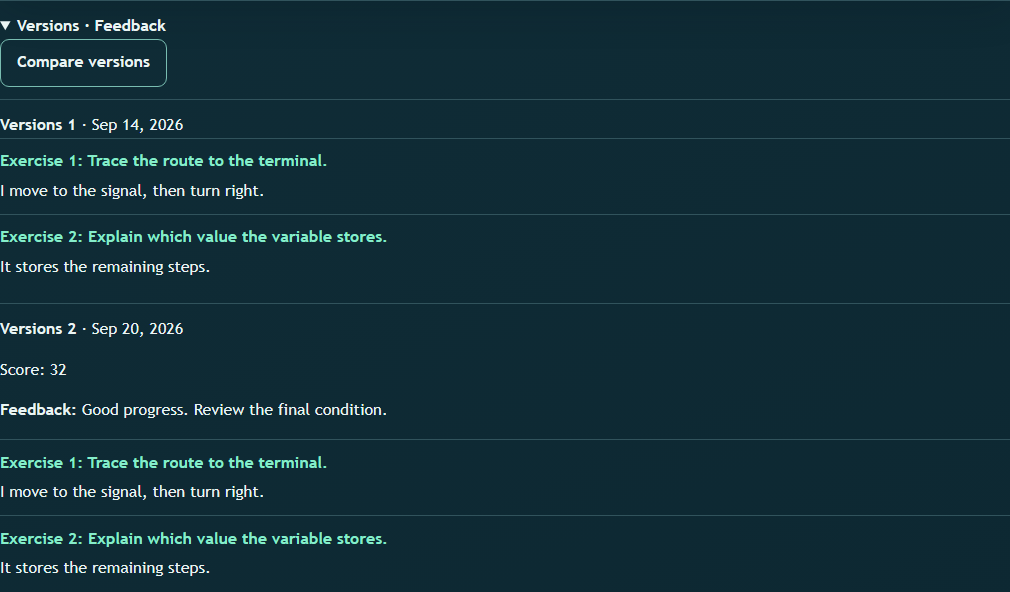
Open each submission, score exercises with the rubric and add useful feedback. A further submission may follow review within the attempt limit. Compare the two versions to see what changed.
Read reports and export CSV
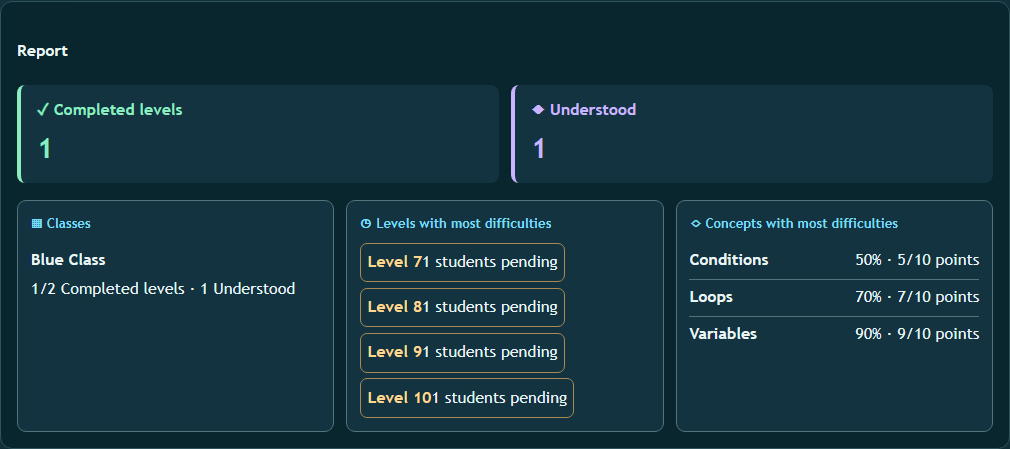
The report separates levels completed from understanding shown in the assessment. Review classes, levels with pending students and scored concepts; filter by class, status, dates and concept. Export CSV downloads the filtered results.
Follow notifications
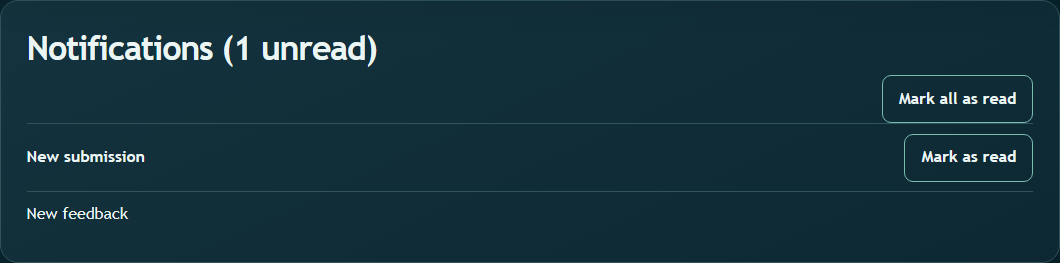
Internal notifications announce a new task, unlocked assessment, submission and feedback. The unread counter updates periodically without reloading; you can mark one or all as read.
Handle special cases
An unavailable active recipient appears as an issue; a historical recipient with no work does not distort the report. Late submissions depend on the settings; attempt limits and request IDs prevent duplicates. If the connection fails, keep the draft and retry.
In this guide
Put it into practice
In Assignments, select New assignment. Choose Citadel or Nexus, a ten-level block, start and due dates, attempts and whether late submissions are allowed. Check the recipient summary before saving.
Back to Assignments